How to Connect Square, Stripe and PayPal to QuickBooks Online
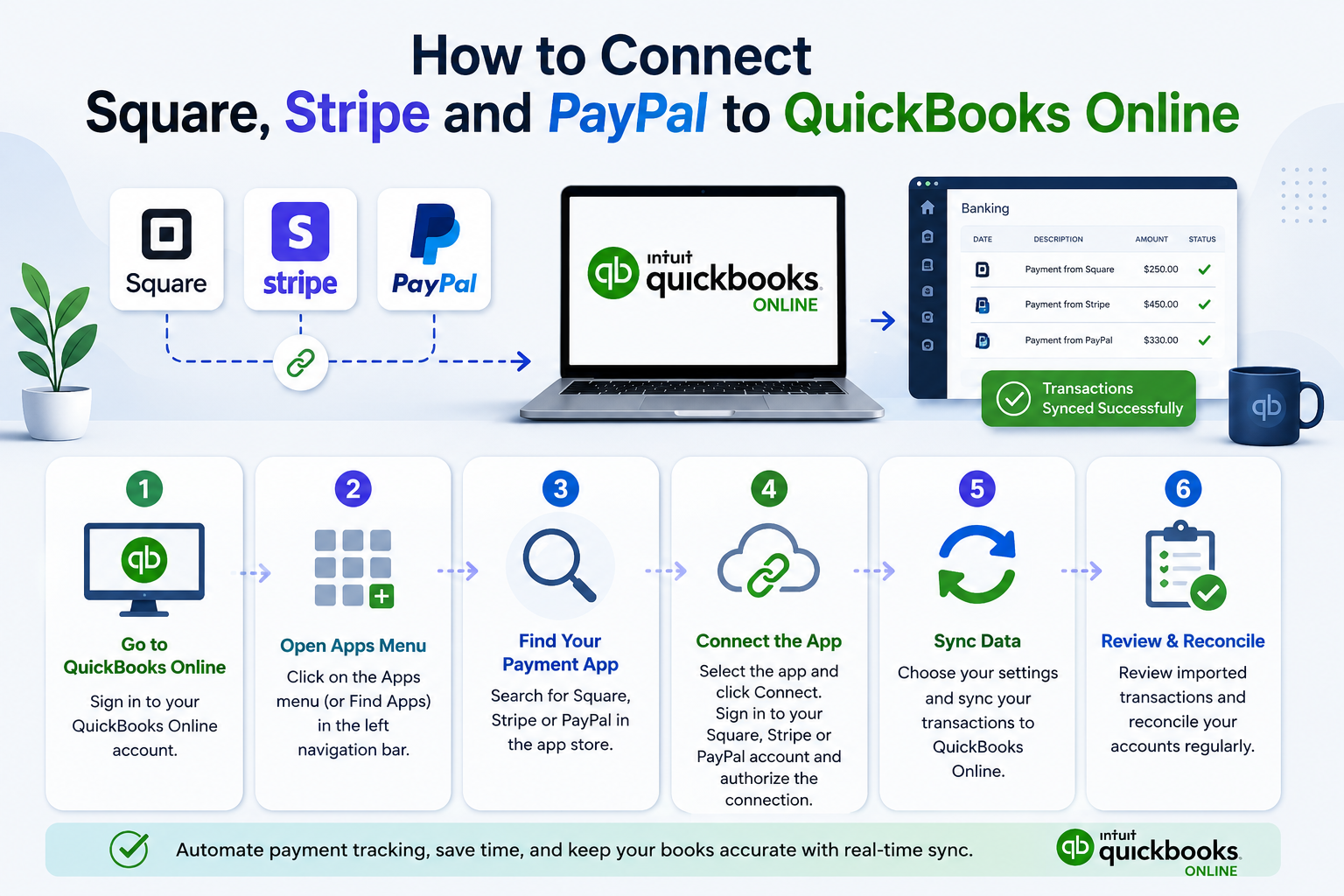
If your business takes payments through Square, Stripe, or PayPal, you don’t have to enter those transactions into QuickBooks Online (QBO) by hand. Intuit publishes official connector apps for all three platforms — Square Connector by QuickBooks, Stripe Connector by QuickBooks, and PayPal Connector by QuickBooks (also called Connect to PayPal 2.0) — that pull your sales, fees, refunds, and payouts directly into your books.
The connection itself only takes a few minutes per platform. The part that actually protects your financial reporting is what happens after you connect: how you map fees, handle bundled payouts, and avoid double-counting income. This guide covers both.
Before You Start: What These Connectors Actually Do
All three connectors work the same basic way. They don’t move money — they import transaction data so QuickBooks can record it as sales, fees, and deposits without you manually re-typing every transaction.
A few things to understand up front:
- They record gross activity, not just the lump sum in your bank account. Square, Stripe, and PayPal all pay out net deposits (sales minus fees and refunds). The connectors are built to unpack that bundled deposit into its individual pieces — sales, fees, refunds, tips — rather than recording only the net number.
- You still need a “clearing” or “undeposited” bank account. Each connector typically prompts you to select or create an account (e.g., “Square Bank,” “PayPal Bank”) to route the transactions to before they hit your real bank feed.
- Historical import is limited. Most of these apps let you pull in a set window of past transactions (commonly up to two years for Square/Stripe, or a shorter recent window for some PayPal setups) — they aren’t meant for a full multi-year backfill.
- They don’t replace reconciliation. You still need to reconcile the connected account against your actual bank statement each month.
Not sure your books are set up correctly?
We connect and reconcile Square, Stripe, and PayPal feeds in QuickBooks Online every day for clients across the US, UK, Canada, Australia, and the GCC.
Request a Bookkeeping ConsultationConnecting Square to QuickBooks Online
Step 1: Open the app from QuickBooks
Go to Apps (or Integrations) in the left-hand menu of QuickBooks Online, then search for Square Connector by QuickBooks (Intuit’s own connector, distinct from third-party Square sync tools).
Step 2: Authorize the connection
Select Get app now, then sign in to your Square account when prompted and approve the connection.
Step 3: Set your deposit account
Choose the bank account where Square deposits land, so QuickBooks knows where to match the net payouts.
Step 4: Choose your sync start date
Pick how far back you want Square to import transactions.
Step 5: Review and categorize
Go to Apps → Accounting → Integration transactions, select the Square tile, and work through the For Review tab. Match items and customers the first time you see them — QuickBooks remembers the mapping for future transactions.
Connecting Stripe to QuickBooks Online
Stripe’s situation is slightly different from Square’s: there is an official Stripe Connector by QuickBooks app, but it functions as one option among several third-party Stripe-to-QuickBooks connectors rather than a single mandatory built-in button — so the setup screen you see may vary depending on which app you choose from the marketplace.
Step 1: Find the connector
In QuickBooks Online, go to Integrations → Find integrations, and search “Stripe Connector by QuickBooks.”
Step 2: Authorize with Stripe
Enter your Stripe account credentials and select Agree and Connect to authorize the data sync.
Step 3: Choose your deposit account and locations
Select the bank account where Stripe sends payouts, and choose which Stripe locations (if you have more than one) you want tracked in QuickBooks.
Step 4: Set your sync start date and run the first sync
You can typically pull in a set window of historical transactions before switching to ongoing daily sync.
Step 5: Review transactions
Go to App Transactions to see imported sales, refunds, payouts, and adjustments, and confirm they match products/services and customers correctly.
Connecting PayPal to QuickBooks Online
Step 1: Locate the PayPal app
Go to Integrations → Find integrations (or Apps → Find apps) and search for PayPal Connector by QuickBooks or Connect to PayPal 2.0, depending on which version is available in your region.
Step 2: Authorize the connection
Enter your PayPal login credentials and select Agree and Connect to grant QuickBooks permission to pull sales, refund, and shipping fee data.
Step 3: Set your PayPal balance account
QuickBooks typically creates a separate “PayPal Bank” account (distinct from your normal bank feed) to route these transactions through.
Step 4: Choose your import start date
Depending on the app version, you can import historical transactions going back up to a set window — check the current limit shown during setup, as it can vary.
Step 5: Confirm and reconcile
Review imported transactions under Integration Transactions or the Banking tab, then reconcile your PayPal balance account periodically like any other bank account.
Common Mistakes When Syncing Payment Processors to QuickBooks
Common reconciliation mistakes to watch for when connecting payment processors to QuickBooks Online.
| Mistake | Why It’s a Problem | Fix |
|---|---|---|
| Recording only the net payout as income | Understates revenue, hides fees as an expense | Let the connector import gross sales, fees, and refunds separately |
| Not mapping sales tax data | Sales tax collected by Square/Stripe/PayPal doesn’t always flow to QBO automatically | Verify tax line items during the first few syncs; correct mapping in app settings |
| Treating PayPal transfers as new income | Creates duplicate revenue entries | Categorize PayPal-to-bank transfers as account transfers, not sales |
| Skipping reconciliation because “the app handles it” | Sync errors, duplicate transactions, and missed refunds go unnoticed | Reconcile each connected account monthly against the processor’s own reports |
| Connecting multiple QuickBooks companies to one processor account | Most connectors only support a one-to-one link | Confirm your connector’s limitations before multi-entity setups |
Do You Need a Third-Party Connector Instead?
Intuit’s own connectors cover most small businesses well, but they have real limits: typically one location or one QuickBooks company per connection, limited historical import windows, and less granular fee-splitting than some businesses need (e.g., multi-currency sellers, high-volume marketplaces, or businesses needing class/location tracking across many revenue streams). In those cases, third-party tools exist that offer deeper mapping and multi-entity support — usually at a monthly cost on top of QuickBooks itself. Which option makes sense depends on your transaction volume and reporting needs, and it’s worth evaluating against your actual monthly transaction count before paying for extra automation.
Not sure which setup is right for your business?
We’ll review your current Square, Stripe, and PayPal volume and recommend the simplest setup that keeps your books accurate.
Get a Free ConsultationWhen Outsourcing Makes Sense
Getting Square, Stripe, and PayPal connected is usually the easy part. The ongoing work — checking fee mapping, catching duplicate transfers, reconciling three separate “bank” accounts every month, and making sure sales tax is captured correctly across all three platforms — is where most small business owners lose time or make errors that surface later at tax time.
If you’d rather have this set up correctly once and reconciled monthly without the back-and-forth, GlobalBookkeepingExperts.com works across QuickBooks Online, Xero, and Zoho Books and has experience connecting and reconciling Square, Stripe, and PayPal feeds as part of ongoing bookkeeping support.
Frequently Asked Questions
Do I need a third-party app to connect Stripe to QuickBooks Online?
Not necessarily. Intuit offers its own Stripe Connector by QuickBooks app in the Integrations/Apps marketplace. Third-party connectors exist as alternatives with different feature sets, but an official option is available directly through QuickBooks.
Can I connect more than one Square, Stripe, or PayPal account to the same QuickBooks company?
Generally each connector is designed around a one-to-one link between one processor account and one QuickBooks Online company. If you run multiple locations or entities, check the specific connector’s current limitations before setup, since this varies by app and can change.
Why does my bank feed show a different amount than my Square or Stripe sales report?
Your bank feed shows the net payout after fees and refunds are deducted. The connector apps import the gross transaction detail separately so you can see sales, fees, and refunds as individual line items rather than one blended number.
How far back can I import historical transactions?
This varies by connector and can change over time — some apps allow importing a year or more of history, others a shorter recent window. Check the current limit shown during setup for the specific app you’re using.
Should I record a PayPal-to-bank transfer as a sale?
No. PayPal typically shows up in QuickBooks as its own account. Moving money from PayPal to your regular bank account is a transfer between accounts, not new revenue, and recording it as a sale will double-count your income.
Do these connectors handle sales tax automatically?
Not always completely. Square, Stripe, and PayPal each handle tax data differently, and it doesn’t always map cleanly into QuickBooks’ sales tax center. Review your first few synced batches carefully rather than assuming tax is captured correctly by default.
What if I only have a handful of transactions a month?
For very low volume, manually reviewing and entering transactions, or exporting a CSV, may be simpler than managing an app connection. The connectors pay off more clearly once you’re processing enough transactions that manual entry becomes time-consuming.
Conclusion
Connecting Square, Stripe, and PayPal to QuickBooks Online is straightforward through Intuit’s own connector apps, but the setup is only half the job — the real value comes from making sure fees, refunds, and transfers are categorized correctly every month.
Let us set it up and reconcile it for you
From initial connector setup through ongoing monthly reconciliation, GlobalBookkeepingExperts.com keeps your Square, Stripe, and PayPal data clean in QuickBooks Online.
Talk to a Bookkeeping Specialist