How to Reconcile Stripe Transactions in QuickBooks Online: A Bookkeeping Guide
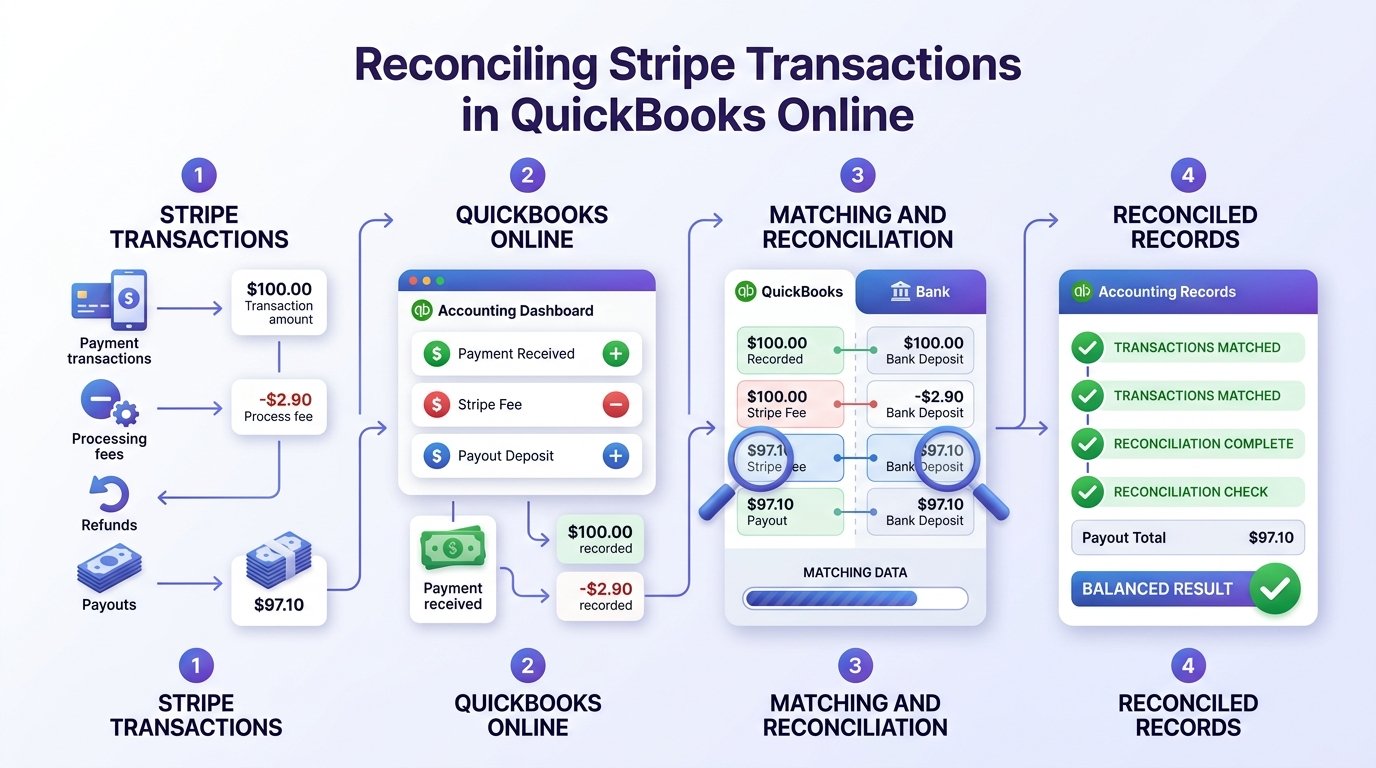
Learning how to reconcile Stripe transactions in QuickBooks Online starts with one fact. The deposit that lands in your bank account is never the full story. Stripe collects the gross amount your customer paid. It subtracts a processing fee. It nets out any refunds. What’s left often gets bundled across dozens of transactions into a single payout. To reconcile Stripe transactions in QuickBooks Online correctly, you need to unpack that payout. Break it back into sales, fees, and refunds so your books reflect what actually happened.
Skip this step, and your revenue will look understated. Your fees will stay invisible, and your monthly reconciliation will never quite line up. This guide walks through the clearing account method most bookkeepers use to reconcile Stripe transactions in QuickBooks Online. It also covers the trickier edge cases and the mistakes that cause the most confusion.
Why a Stripe Payout Doesn’t Match Your Sales
Say a customer pays you $500. Stripe deducts a processing fee. The exact rate depends on your account, card type, and currency. A few days later, a net amount shows up in your bank feed as one deposit. That deposit combines every other sale from the same batch. If you record that single bank deposit as your income, you understate your actual sales. You also lose any record of what you paid in fees. That gap compounds every month. Eventually it distorts your profit and loss statement and your sales tax reporting. It also hides how much Stripe actually costs you.
The fix is to stop treating the bank deposit as the transaction and start treating it as the result of several transactions you record separately.
The Clearing Account Method
Most bookkeepers reconcile Stripe transactions in QuickBooks Online using a dedicated clearing account. Some call it a “Stripe Clearing” or “Stripe Holding” account. It sits between your sales and your real bank account. Stripe’s own balance reporting documentation is a useful reference alongside this process, since it explains what each balance figure means.
Step 1: Create a Stripe Clearing account
In QuickBooks Online, go to Chart of Accounts → New. Set the account type to Bank. Set the detail type to Cash on hand, or Checking if your accountant prefers. Name it something clear, like “Stripe Clearing.” Don’t connect this account to a live bank feed — it’s a bookkeeping tool, not a real account.
Step 2: Record gross sales into the clearing account
Each time you make a Stripe sale, record the full gross amount as income. Deposit it into Stripe Clearing, not your real bank account. If you use the Stripe Connector by QuickBooks or a similar sync app, this happens automatically. Each Stripe transaction imports as its own line.
Step 3: Record Stripe’s fee as a separate expense
Post Stripe’s processing fee to a “Merchant Fees” or “Payment Processing Fees” expense account, paid out of Stripe Clearing. This keeps your gross revenue and your fees visible as two separate numbers instead of one blended figure.
Step 4: Record the payout as a transfer, not a sale
When Stripe pays out to your real bank account, record it in QuickBooks as a transfer. It moves from Stripe Clearing to your checking account, not new income. People get this step wrong most often. A Stripe payout should never show up as a sale in your bank feed. You already recorded the sale when the transaction happened.
Step 5: Reconcile the clearing account against Stripe’s own balance
Pull up Stripe’s Balance report (under Reports → Balances in your Stripe Dashboard) for the period you’re reconciling. Compare the starting and ending balances to your Stripe Clearing account in QuickBooks. If the two match, you’re done. If they don’t match, look for a missing transaction or a duplicate entry. Also check for a payout you haven’t recorded as a transfer yet.
Not sure your Stripe clearing account is set up correctly?
We reconcile Stripe, Square, and PayPal accounts in QuickBooks Online for clients across the US, UK, Canada, Australia, and the GCC.
Request a Bookkeeping ConsultationAlternative: Using Undeposited Funds Instead of a Custom Clearing Account
Some businesses use QuickBooks Online’s built-in Undeposited Funds account instead of creating a custom clearing account. Here, each Stripe sale becomes a sales receipt deposited to Undeposited Funds. When the payout arrives, QuickBooks groups the relevant sales receipts and refunds together. It creates a single bank deposit that matches the net payout. Stripe’s fee appears as a negative line item on that deposit.
This approach requires less setup, since Undeposited Funds exists in every QuickBooks file by default. Matching your bank feed is more straightforward too. The trade-off: your daily Undeposited Funds balance won’t necessarily match your true Stripe balance. It only reflects sales that QuickBooks hasn’t yet grouped into a payout. Want an always-accurate running Stripe balance for close cash-flow monitoring? A dedicated clearing account usually fits better. Mainly care about month-end accuracy? Undeposited Funds can work fine.
Handling Common Stripe Edge Cases
Refunds and chargebacks
Refunds and chargebacks reduce a future payout rather than creating an immediate reversal in your bank account. Record each refund against the original sale in your clearing account as it happens. Don’t wait to see a smaller payout and then try to work backward to figure out why.
Reserve or risk holds
Stripe can place a temporary hold on part of your balance. This usually happens when it detects elevated chargeback risk or unusual transaction activity. Held funds won’t appear in your payouts until Stripe releases them. When reconciling, use your Available Balance, not Total Balance, as your reference point if a reserve is active. Treat the held amount as an open item in your clearing account until Stripe releases it.
Multi-currency sales
If you sell internationally, Stripe may settle different currencies separately. Each currency effectively needs its own clearing account. Combining them into one account makes it hard to tell whether a mismatch is a real bookkeeping error or just a currency conversion difference.
Frequent payout schedules
Daily automatic payouts can mean reconciling twenty or more separate deposits a month. Two ways to cut that workload: pre-categorize recurring Stripe deposits as transfers using a bank rule. Or switch your payout schedule from daily to weekly in Stripe Dashboard → Settings → Payouts. Either option shrinks the number of transactions you match each month.
Stripe Connect / marketplace accounts
Stripe Connect adds an extra layer if you pay out sellers or service providers on a marketplace platform. You need to track platform fees, transfers to connected accounts, and net revenue recognition separately from a standard direct-payment Stripe setup. This is more complex than typical Stripe bookkeeping, and it often benefits from a bookkeeper familiar with marketplace accounting.
Common Stripe Reconciliation Mistakes
Frequent errors to watch for when reconciling Stripe payouts in QuickBooks Online.
| Mistake | Why It’s a Problem | Fix |
|---|---|---|
| Categorizing the Stripe payout as income in the bank feed | Duplicates revenue that was already recorded when the sale happened | Match the payout as a transfer from Stripe Clearing, never as a new sale |
| Reconciling against gross sales instead of the payout amount | The numbers will never match since fees and refunds are excluded | Always reconcile the bank deposit against Stripe’s net payout report |
| Ignoring reserve or risk holds | Total Balance won’t match your bank activity if funds are held | Use Available Balance as your reconciliation reference when a hold is active |
| Mixing multiple currencies into one clearing account | Makes it impossible to tell a real error from a currency conversion difference | Use a separate clearing account per currency |
| Waiting until quarter-end to reconcile | Errors pile up and become harder to trace back to a specific transaction | Reconcile the clearing account monthly, not quarterly |
Automating the Process
Manually recording every Stripe charge, fee, and refund works fine at low transaction volumes. It gets time-consuming fast as sales scale up. The official Stripe Connector by QuickBooks app can automate much of this by importing transaction-level detail directly into QuickBooks. Several third-party sync tools go further, offering options like per-transaction versus daily-summary syncing, multi-currency clearing accounts, and historical backfills. The right option depends on your transaction volume, whether you sell in multiple currencies, and how much detail you need in your reporting.
When to Bring in a Bookkeeper
Stripe reconciliation is manageable for a straightforward, single-currency, low-volume business. It gets considerably more complex once you’re dealing with reserve holds, chargebacks, multiple currencies, or a Stripe Connect marketplace setup. Errors in any of these areas tend to surface at the worst possible time, like during tax season or a financial review.
Want your Stripe clearing account set up correctly once, then reconciled monthly without chasing discrepancies? GlobalBookkeepingExperts.com can help. We work across QuickBooks Online, Xero, and Zoho Books, and we reconcile Stripe, Square, and PayPal accounts as part of ongoing bookkeeping support.
Frequently Asked Questions
Should I record the Stripe payout in my bank feed as income?
No. Match the payout as a transfer from your Stripe Clearing (or Undeposited Funds) account. Don’t categorize it as new income — you already recorded the sale when the transaction happened.
What’s the difference between Stripe Clearing and Undeposited Funds?
Undeposited Funds is a built-in QuickBooks account with less setup but a balance that doesn’t always reflect your true Stripe balance day-to-day. A custom Stripe Clearing account takes more setup but gives you an always-accurate running balance that mirrors your Stripe account.
Why doesn’t my Stripe Clearing account reconcile to zero?
This usually means a payout hasn’t been recorded as a transfer yet, a transaction was entered twice, or a reserve hold is affecting your balance. Compare your clearing account to Stripe’s own Balance report to isolate the difference.
How do I handle a Stripe reserve or risk hold?
Use your Available Balance, not Total Balance, as your reconciliation reference point while the hold is active, and treat the held amount as an open item that will clear once Stripe releases it.
Do I need a separate clearing account for each currency?
If you sell in multiple currencies, yes — mixing currencies into one account makes it difficult to tell a genuine reconciliation error from a normal currency conversion difference.
How often should I reconcile my Stripe account?
Monthly is the general recommendation. Waiting until quarter-end makes it much harder to trace a discrepancy back to a specific transaction.
Conclusion
To reconcile Stripe transactions in QuickBooks Online well, remember one core idea: treat the payout as the result of your sales, not the sales themselves. A clearing account, or a well-used Undeposited Funds account, keeps your gross revenue, fees, and refunds visible. That visibility is what keeps your books accurate month over month.
Let us handle your Stripe reconciliation every month
From clearing account setup through monthly reconciliation, GlobalBookkeepingExperts.com keeps your Stripe data clean and accurate in QuickBooks Online.
Talk to a Bookkeeping Specialist