How to Find and Fix Duplicate Transactions in QuickBooks Online
Finding duplicate transactions in QuickBooks Online usually starts the same way: your bank reconciliation won’t balance, or your revenue looks higher than it should. Duplicate transactions inflate your numbers quietly. They rarely announce themselves, and by the time you notice something’s off, the duplicate might already be reconciled and buried in a closed period.
This guide covers why duplicate transactions happen, how to confirm a transaction is actually duplicated before you touch it, and the right way to remove duplicates depending on where they sit in QuickBooks.
Why Duplicate Transactions Happen
Duplicate transactions in QuickBooks Online almost always trace back to one of these causes:
- Reconnecting a bank or credit card account. If you disconnect and reconnect a feed, QuickBooks can re-download transactions that already exist in your books.
- Importing a file that overlaps your bank feed. Uploading a CSV or QBO file that covers dates already pulled in through the live bank feed creates two copies of the same activity.
- Adding instead of matching. When a downloaded bank transaction should match an invoice or bill you already entered, clicking “Add” instead of “Match” creates a brand-new, separate transaction.
- Recording the same sale two different ways. This is common with payment processors: a Stripe or Square sale gets entered manually, and then the connector app syncs the same sale automatically.
- Running two sync apps on the same account. If two different integrations both pull transactions from the same bank feed or payment processor, they can each create their own copy.
Step 1: Confirm It’s Actually a Duplicate
Before deleting or excluding anything, verify the transaction against your actual bank or credit card statement. Log in to your bank’s website and check the real activity for that date and amount. If the charge appears twice on your bank statement, it genuinely happened twice, and you need to resolve it with your bank or the payment processor, not by editing your books. If it appears once on your bank statement but twice in QuickBooks, you’ve found a true duplicate, and the fix belongs in QuickBooks.
Not confident your books are duplicate-free?
We review and clean up bank feeds for clients across the US, UK, Canada, Australia, and the GCC as part of ongoing bookkeeping support.
Request a Bookkeeping ConsultationStep 2: Find the Duplicate
Go to Transactions → Bank transactions and select the affected account. Duplicate transactions typically show up in one of three places, depending on what’s already happened to them:
- Pending tab: The transaction hasn’t been reviewed or added to your books yet.
- Categorized tab: Someone already reviewed and added the transaction to your books.
- Excluded tab: The transaction was previously excluded but never permanently deleted.
Sort or filter by amount and date to spot repeats quickly, especially if you’re scanning several months of activity at once.
Step 3: Remove It the Right Way
If the duplicate is in the Pending tab
Check the box next to the duplicate transaction and select Exclude. This moves it to the Excluded tab without deleting it outright. From the Excluded tab, select it again and choose Delete to remove it permanently. Intuit’s own guidance on this process explains the distinction between excluding and deleting in more detail.
If the duplicate is already Categorized
Select the duplicate transaction in the Categorized tab and choose Undo. This sends it back to the Pending tab, where you can exclude and then delete it using the steps above.
Exclude vs. delete: know the difference
Excluding a transaction removes it from your reports and prevents QuickBooks from re-downloading that exact transaction from the bank feed again. Deleting a transaction removes it entirely, but QuickBooks may treat it as missing and attempt to re-download it on the next sync. For true duplicates you never want to see again, exclude first, then delete from the Excluded tab — don’t delete directly from Pending or Categorized.
Handling Duplicates That Are Already Reconciled
Deleting a transaction that’s part of a completed reconciliation throws that reconciliation out of balance. Before removing anything from a closed period, check whether the transaction date falls before your last reconciliation date. If it does, you have two options: reopen and redo the reconciliation for that period after removing the duplicate, or make a correcting journal entry in the current period instead of touching the closed one, depending on how material the error is and what your accountant recommends.
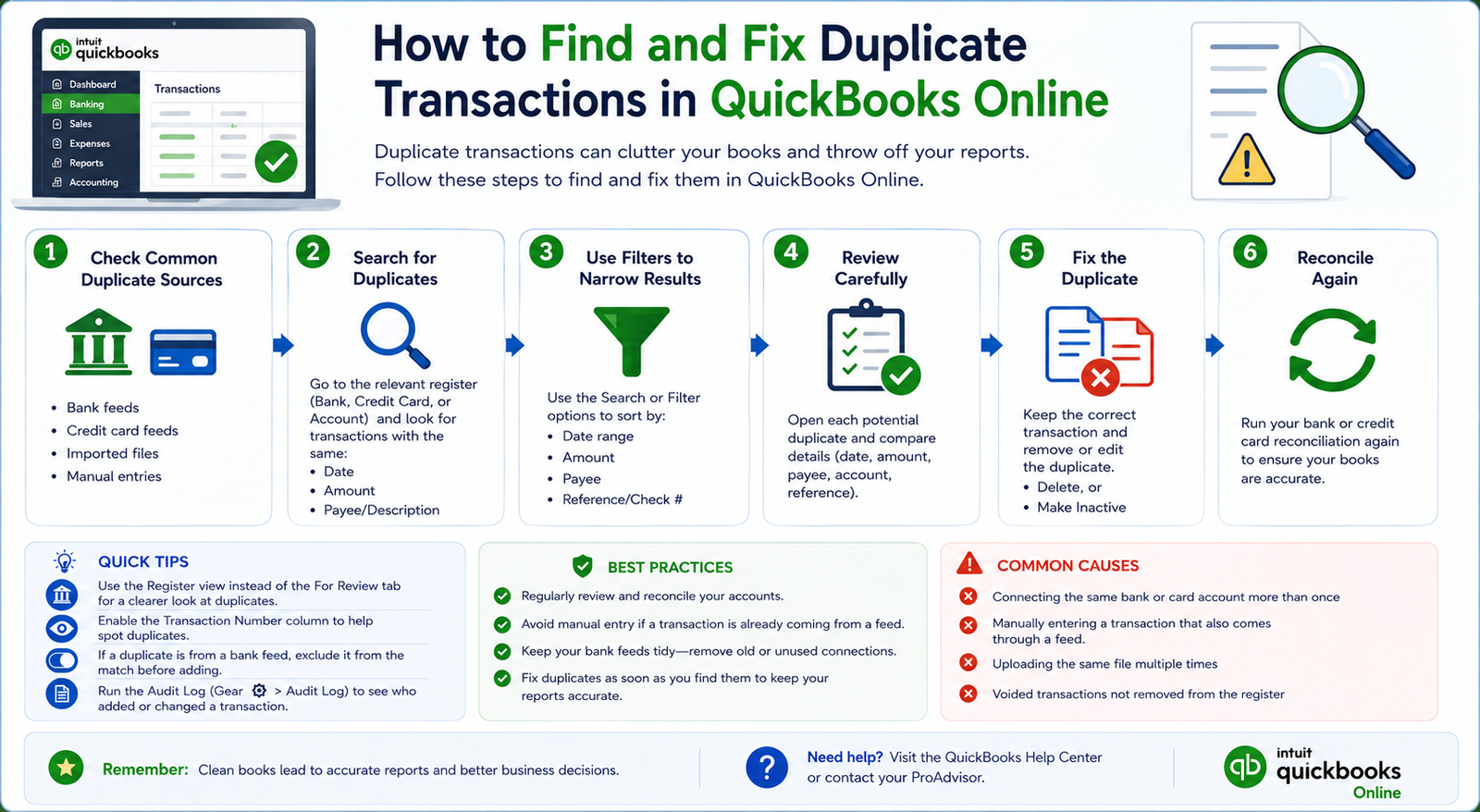
The general workflow for confirming, finding, and removing duplicate transactions in QuickBooks Online.
Common Mistakes When Removing Duplicates
| Mistake | Why It’s a Problem | Fix |
|---|---|---|
| Deleting instead of excluding a bank-fed transaction | QuickBooks may re-download it on the next sync | Exclude first, then delete from the Excluded tab |
| Removing a transaction without checking the bank statement first | You might delete a legitimate charge that happened twice | Always confirm against the real bank or card statement before touching anything |
| Deleting a duplicate from a reconciled period without care | Throws off a completed reconciliation | Check the reconciliation date first, and redo the reconciliation if needed |
| Running two sync apps on the same account indefinitely | Creates new duplicates every sync cycle, not just once | Disconnect the redundant integration, not just the duplicate transactions it creates |
Found duplicates in an already-reconciled period?
We’ll help you correct the error without breaking your historical reconciliations.
Get a Free ConsultationPreventing Duplicate Transactions Going Forward
- Match before you add. Always check whether a downloaded bank transaction should match something you already entered before clicking “Add.”
- Avoid overlapping imports. If you manually import a bank file, check your bank feed’s existing date range first so you don’t cover the same period twice.
- Audit your connected apps. Review which apps sync to which accounts periodically, and disconnect anything redundant or no longer in use.
- Reconcile monthly. Monthly reconciliation catches duplicates while they’re recent and easy to trace, instead of months later when the source is harder to identify.
When to Bring in a Bookkeeper
A handful of duplicate transactions in QuickBooks Online is a quick fix. Months of accumulated duplicates across multiple accounts, especially ones spanning several reconciled periods, take more care to untangle without creating new errors in the process.
GlobalBookkeepingExperts.com works across QuickBooks Online, Xero, and Zoho Books, and handles bank feed cleanup and reconciliation corrections as part of ongoing bookkeeping support.
Frequently Asked Questions
What’s the difference between excluding and deleting a transaction?
Excluding removes a transaction from your reports and stops QuickBooks from re-downloading that exact one. Deleting removes it entirely, but QuickBooks may treat it as missing and try to re-download it. For duplicates, exclude first, then delete from the Excluded tab.
How do I know if a transaction is a real duplicate or a legitimate double charge?
Check your actual bank or credit card statement. If the charge appears twice there, it happened twice in real life. If it appears once on your statement but twice in QuickBooks, it’s a true duplicate you can safely remove.
Can I delete a duplicate from an already-reconciled month?
You can, but it will throw that reconciliation out of balance. Reopen and redo the reconciliation after removing the duplicate, or ask your accountant about a correcting journal entry instead, depending on the size of the error.
Why do duplicate transactions keep appearing even after I delete them?
This usually means you deleted instead of excluding, or you have two sync apps still connected to the same account. Exclude the transaction properly, and check your connected apps for overlap.
Do duplicate transactions affect my sales tax reporting?
Yes, if the duplicates involve taxable sales. Doubled income entries can overstate the sales tax you owe, so it’s worth checking your sales tax reports after cleaning up any duplicates tied to sales transactions.
Conclusion
Fixing duplicate transactions in QuickBooks Online comes down to three habits: confirm against your real bank statement before deleting anything, exclude before you delete, and check whether the transaction touches a reconciled period first. Build those checks into your monthly routine, and duplicates stop compounding into bigger cleanup projects later.
Let us keep your books duplicate-free every month
From bank feed cleanup through monthly reconciliation, GlobalBookkeepingExperts.com keeps your QuickBooks Online books accurate.
Talk to a Bookkeeping Specialist