Clio Trust Accounting and QuickBooks Online: Setup Guide for Law Firms
Getting Clio trust accounting and QuickBooks Online setup right matters more than almost any other integration a law firm runs. Trust accounting mistakes aren’t just bookkeeping errors — in most jurisdictions, mishandling client funds can trigger a bar complaint or disciplinary action, regardless of whether the mistake was intentional. This guide walks through how the Clio-to-QuickBooks Online trust sync actually works and how to set it up correctly. It also covers why the integration should never replace your monthly manual reconciliation.
Trust Accounting Basics, in Brief
Before touching the integration settings, it helps to be clear on what every trust accounting system is trying to achieve, regardless of jurisdiction:
- Client funds stay separate from firm funds. Retainers, settlements, and other client money sit in a dedicated trust account (called an IOLTA account in most US states) and never mix with your operating account.
- Every client’s balance gets tracked individually. The trust account holds money for multiple clients at once, so you need a running ledger showing exactly how much belongs to each one.
- Three numbers must match, every month. Your trust bank account balance, your trust liability balance, and the sum of all individual client ledger balances need to reconcile to the same figure. This is commonly called a three-way reconciliation.
Clio Manage is built to track the client-level detail (item three), while QuickBooks Online handles your firm’s overall books. The integration exists to keep both systems aligned without double entry — but it doesn’t eliminate the need for the three-way check.
What the Clio-QuickBooks Online Trust Sync Actually Does
Clio’s trust sync exports trust deposits, disbursements, and applied trust funds recorded in Clio into QuickBooks Online. It posts them as journal entries to a trust liability account you designate during setup. Clio’s own documentation notes you can sync up to 15 trust accounts between the two platforms. It also confirms the sync only pulls in transactions entered on or after the start date you specify — it won’t automatically backfill your full trust history.
It’s worth being realistic about what this buys you. The sync removes manual double entry, but it syncs whatever is already in your Clio trust ledger, including any existing errors. If your chart of accounts is disorganized, or your trust and operating bank accounts have ever been mixed up, the integration will faithfully sync that mess into QuickBooks without flagging anything wrong. Firms have gone many months running a “working” integration, only to discover during a proper three-way reconciliation that trust liability balances in QuickBooks didn’t match client balances in Clio at all. The sync hadn’t failed — the underlying setup was wrong from day one.
Not sure your trust accounting setup is clean?
We help law firms clean up their chart of accounts and set up Clio and QuickBooks Online correctly before connecting any sync.
Request a Bookkeeping ConsultationBefore You Connect: Get Your QuickBooks File Ready
Don’t connect the integration to a QuickBooks file that isn’t already structured correctly. Confirm these things first:
- Separate bank accounts for operating and trust funds. This sounds obvious, but firms sometimes discover a client payment landed in the wrong account years earlier and was never corrected.
- A dedicated Trust Liabilities account exists in your Chart of Accounts. Set this up as a liability account type, since your clients legally own the money in your trust bank account, not the firm.
- Client-level detail is tracked somewhere. Many jurisdictions require an individual ledger per client with trust funds on deposit, not just one lump trust liability figure. Check whether your jurisdiction expects this detail inside QuickBooks (via sub-accounts or classes) or whether tracking it in Clio alone is sufficient for your reporting needs.
- Your chart of accounts is clean. Duplicate income accounts or years of ad-hoc additions won’t break the sync technically, but they will make your reporting far less useful once trust and operating data start flowing in automatically.
Step-by-Step: Setting Up the Trust Sync
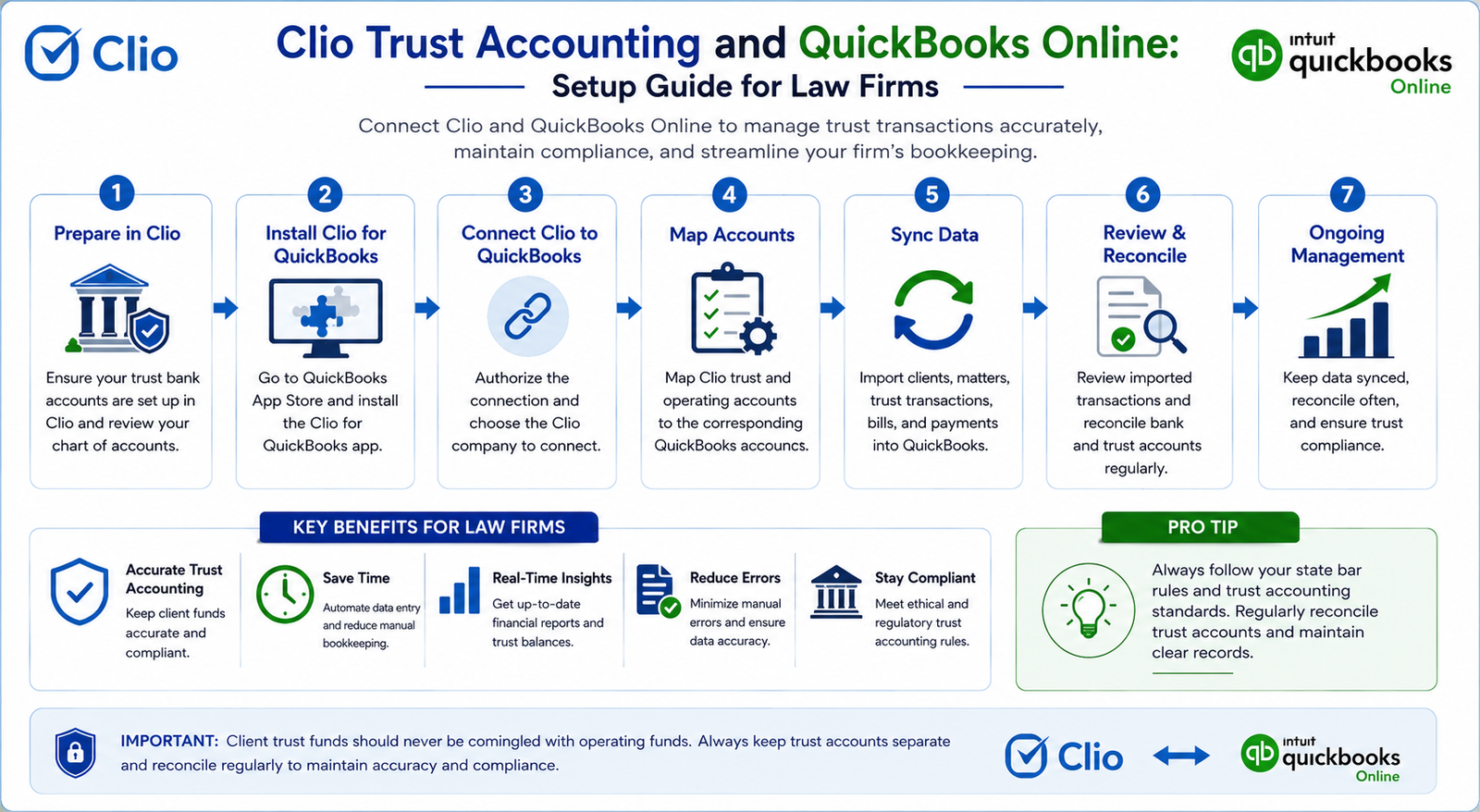
Step 1: Connect Clio to QuickBooks Online
In Clio Manage, go to Settings → Bill Syncing, and click Connect next to the QuickBooks Online integration. Only account administrators can access this setting. You’ll be prompted to log in to QuickBooks Online and authorize the connection.
Step 2: Enable custom transaction numbers in QuickBooks
Before syncing invoices, enable Custom Transaction Numbers in QuickBooks Online (Settings → Account and Settings → Sales). This prevents Clio and QuickBooks from generating conflicting invoice numbers once both systems are creating records.
Step 3: Configure the trust sync settings
Back in Settings → Bill Syncing, select Configure Settings next to QuickBooks Online, then check the box to export trust transactions. Select the QuickBooks Online trust bank account and the trust liability account you set up earlier.
Step 4: Set your sync start date
Choose the date from which Clio should start syncing trust transactions. Transactions entered before this date won’t be pulled in automatically, so if you’re mid-year, confirm your historical trust balances are already accurate in QuickBooks before this cutover point.
Step 5: Map your products and services, then save
Map Clio’s billing categories to the correct products and services in QuickBooks Online, then save your sync settings. Once saved, contacts and bills typically sync every 30–60 minutes, and trust transactions export as journal entries to your designated trust liability account. If you also print checks from QuickBooks, enable check printing sync here so check numbers write back to Clio.
The Three-Way Reconciliation You Still Have to Do by Hand
No integration replaces this step. Every month, confirm that these three numbers match exactly:
| Number | Where It Comes From |
|---|---|
| Trust bank account balance | Your bank statement for the trust account |
| Trust liability account balance | QuickBooks Online Chart of Accounts |
| Sum of individual client ledger balances | Clio’s client trust ledger reports |
If all three match, your trust accounting is reconciled for the period. If they don’t, stop and find the discrepancy before it compounds into another month. A sync running without errors only means no technical failure occurred. It says nothing about whether the underlying entries were correct in the first place.
Common Setup Mistakes
Frequent errors law firms run into when connecting Clio’s trust sync to QuickBooks Online.
| Mistake | Why It’s a Problem | Fix |
|---|---|---|
| Connecting the sync before cleaning up the chart of accounts | The integration syncs existing errors faithfully instead of catching them | Clean up your chart of accounts and verify opening trust balances before connecting |
| Treating the trust liability account as an asset | Misrepresents client funds as firm assets on your books | Set it up as a liability account type from the start |
| Assuming the sync backfills historical trust transactions | Transactions before your start date won’t appear in QuickBooks | Manually verify historical balances are accurate before your sync cutover date |
| Skipping the monthly three-way reconciliation because the sync is running | Errors can go undetected for months before surfacing | Reconcile trust bank, trust liability, and client ledger balances every month, without exception |
| Not confirming jurisdiction-specific requirements first | Trust accounting rules vary significantly by state, province, or country | Confirm requirements with your bar association, law society, or regulator before finalizing your setup |
Trust Accounting Rules Differ by Jurisdiction
Trust accounts go by different names depending on where you practice. The United States generally calls them IOLTA accounts, with each state bar setting its own requirements for client-level sub-ledgers and reconciliation frequency. Solicitors in the United Kingdom fall under the Solicitors Regulation Authority’s Accounts Rules for client accounts. Canadian provinces each set their own trust accounting rules through their provincial law society, and Australian states do the same under each jurisdiction’s legal profession legislation. Firms operating across more than one of these jurisdictions shouldn’t assume rules from one state or country apply elsewhere — confirm the specific requirements with the relevant regulator for each one.
When to Bring in a Bookkeeper
Trust accounting is one of the few areas of bookkeeping where a small setup mistake carries professional consequences beyond a messy balance sheet. If your Clio-QuickBooks integration is already running and you’re not fully confident your three-way reconciliation would balance right now, that’s worth checking before it becomes a bigger problem.
GlobalBookkeepingExperts.com works with law firms on QuickBooks Online setup, chart of accounts cleanup, and ongoing trust account reconciliation, alongside standard bookkeeping and reporting support.
Frequently Asked Questions
Does Clio’s QuickBooks Online integration replace the need for manual trust reconciliation?
No. The sync reduces double entry, but you still need to manually confirm your trust bank balance, trust liability balance, and sum of client ledgers match every month.
How many trust accounts can I sync between Clio and QuickBooks Online?
Up to 15 trust accounts, according to Clio’s own documentation, though this can change, so confirm the current limit during setup.
Will the trust sync backfill my historical transactions?
No. It only syncs trust transactions entered on or after the start date you set during configuration. Anything before that date needs to already be correct in QuickBooks.
Should my trust liability account be set up as an asset or a liability in QuickBooks?
A liability. The money in your trust bank account belongs to your clients, not your firm, so the corresponding account on your books should reflect that as a liability, not an asset.
Do trust accounting rules differ between states or countries?
Yes, significantly. Your state bar, provincial law society, or national regulator sets these requirements, not Clio or QuickBooks, so always confirm the specific rules that apply to your firm’s jurisdiction.
Conclusion
A properly configured Clio trust accounting and QuickBooks Online setup removes double entry and keeps your books aligned with your client trust ledgers. But the integration is only as reliable as the setup behind it, and it never replaces the manual three-way reconciliation your trust accounting depends on every month.
Let us set up and reconcile your trust accounting correctly
From chart of accounts cleanup through monthly three-way reconciliation, GlobalBookkeepingExperts.com supports law firms using Clio and QuickBooks Online.
Talk to a Bookkeeping Specialist