How to Fix Duplicate Invoices in QuickBooks, Bill.com and Time-Tracking Apps
Duplicate invoices in QuickBooks, Bill.com and time-tracking apps rarely come from one clean cause. QuickBooks and Bill.com sync bidirectionally, time-tracking apps push billable hours into invoices automatically, and every connection point between these systems is a place where the same charge can get created twice. The client sees it, calls confused, and now you’re chasing down which invoice was real.
This guide covers the three most common sources of duplicate invoices — QuickBooks itself, the Bill.com sync, and time-tracking integrations — and the correct fix for each one.
Duplicate Invoices Inside QuickBooks Online
Before blaming an integration, check whether the duplicate originated entirely inside QuickBooks. Many duplicate invoices in QuickBooks, Bill.com and time-tracking apps actually start here: a recurring invoice template that fired twice, a team member manually recreating an invoice that already existed, or the same billable time or expense getting added to two separate invoices before the first one locked it in.
Finding the duplicate
Run a sales report filtered by customer, date, and amount to spot repeated entries quickly. If the duplicate came through a sync, check your integration’s transaction list (for example, My Apps → Invoices for certain connectors) and filter by status, date, and customer to isolate the matching pair.
Confirming which invoice to keep
Never delete blindly. Check for a linked payment on each invoice, and compare both against any tax filing you’ve already submitted for that period. Keep the invoice tied to a real payment or filed return, and delete the other from the invoice’s Action column.
Not sure which invoice is the real one?
We help clients across the US, UK, Canada, Australia, and the GCC untangle duplicate invoices without breaking payment history or tax filings.
Request a Bookkeeping ConsultationDuplicate Invoices Between QuickBooks and Bill.com
Bill.com and QuickBooks sync bidirectionally, and most sync errors that create duplicates trace back to naming or numbering collisions rather than a technical failure. Bill.com’s own sync error documentation outlines several specific scenarios worth knowing before you troubleshoot on your own.
Invoice number collisions
QuickBooks Online won’t allow the same invoice number to exist twice for a customer or vendor. If Bill.com tries to sync an invoice using a number already in use, the sync fails or creates a conflicting duplicate record. Fix this by editing the invoice number in Bill.com to be unique, or by disabling Custom transaction numbers in QuickBooks under Settings → Account and Settings → Sales → Sales form content. That lets QuickBooks assign numbers automatically instead.
Contact name collisions
QuickBooks Online requires every customer, vendor, and employee name to be unique across all contact types. If Bill.com tries to sync a contact whose name already exists in QuickBooks under a different record, the sync fails and can create a duplicate entry instead of matching the existing one. Rename the conflicting contact in Bill.com, or merge the duplicate records if they represent the same actual customer or vendor.
Records created twice after a failed sync
If a record can’t be matched between systems, syncing again sometimes creates a fresh duplicate instead of linking to the existing one. When this happens, add a temporary marker (like an asterisk) to one record’s name, resync so the systems link correctly, then merge the duplicates and remove the marker.
Duplicate Billing from Time-Tracking Apps
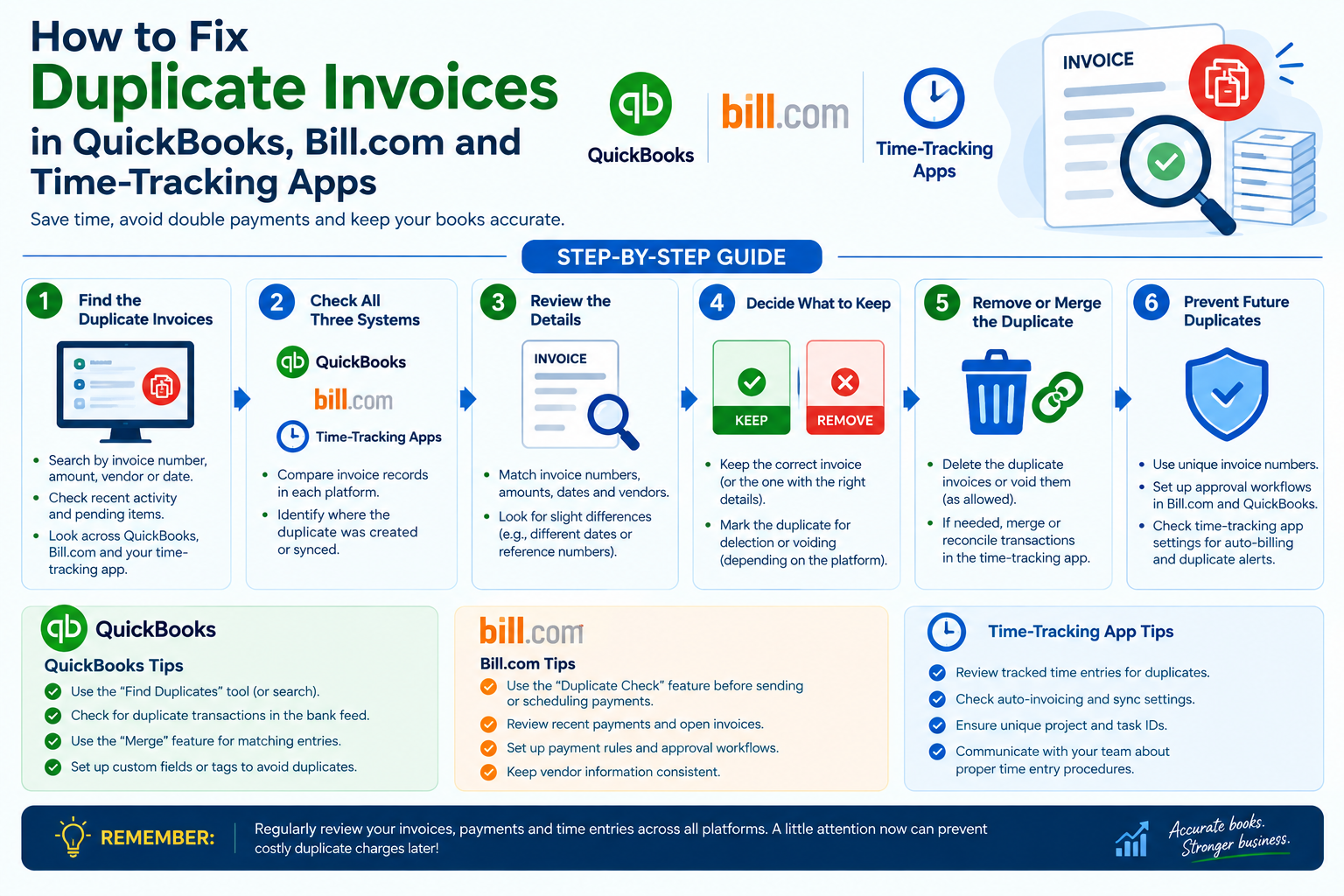
Where duplicate invoices most often originate across QuickBooks, Bill.com, and time-tracking integrations.
Time-tracking apps like QuickBooks Time cause a different kind of duplicate: the same billable hours getting invoiced twice, rather than two copies of the same invoice document.
Billed once through Billable Time, once through a manual sales entry
If someone adds billable time to an invoice through the “Add Time/Costs” feature, and someone else separately enters that same work as a manual sales line item, your profit and loss statement can show the revenue twice: once as regular sales, once as billable time. Check for this by running a P&L and comparing your billable time total against your sales total for overlap on the same client and date range.
The same time entry added to two invoices
Time entries only lock to an invoice once that invoice is saved. If two people pull up “unbilled” time for the same client around the same time, both can add the identical entry to two different invoices before either one saves. Run the Time Activities by Customer Detail report and check the Billable column to confirm each entry only appears on one invoice.
Time entries not marked billable in the first place
This causes the opposite problem, but it’s worth checking at the same time. If a customer or employee isn’t flagged as billable in QuickBooks, synced time from your tracking app won’t show up on invoices at all. That can tempt someone to enter it manually and create a duplicate the next time the setting gets fixed. Confirm billable status under Settings → Account and Settings → Expenses → Make expenses and items billable, and check the Billable flag on the customer or employee record itself.
Suspect your billable time is getting invoiced twice?
We’ll audit your time-tracking, invoicing, and sync setup to find exactly where the duplication is happening.
Get a Free ConsultationWhere Each Type of Duplicate Comes From
| Where It Shows Up | Likely Cause | Where to Check First |
|---|---|---|
| Two identical invoices in QuickBooks | Recurring template fired twice, or manual re-entry | Sales report filtered by customer and date |
| Sync error mentioning invoice numbers | Invoice number already used for that customer or vendor | Bill.com sync status page |
| Sync error mentioning contact names | Duplicate customer, vendor, or employee name across systems | Contact lists in both QuickBooks and Bill.com |
| Revenue doubled on the P&L | Billable time invoiced once as time, once as manual sales | Time Activities by Customer Detail report |
Preventing Duplicate Invoices Going Forward
A few habits go a long way toward stopping duplicate invoices in QuickBooks, Bill.com and time-tracking apps before they start:
- Assign one person to own invoicing per client. Most duplicate billable time happens when two people pull the same unbilled hours at once.
- Keep invoice numbering consistent across systems. Decide whether QuickBooks or Bill.com controls numbering, and don’t let both assign numbers independently.
- Standardize contact names before connecting any integration. Mismatched names between QuickBooks and Bill.com are a leading cause of sync-created duplicates.
- Review the Time Activities by Customer Detail report monthly. Catching a double-billed entry the same month it happens is far easier than untangling it during tax season.
When to Bring in a Bookkeeper
A single duplicate invoice is a five-minute fix. Duplicate invoices in QuickBooks, Bill.com and time-tracking apps spread across all three systems at once, especially ones tied to already-paid invoices or filed tax returns, take more care to correct without creating new errors.
GlobalBookkeepingExperts.com works across QuickBooks Online, Bill.com, Gusto, and common time-tracking platforms, and handles multi-system reconciliation and cleanup as part of ongoing bookkeeping support.
Frequently Asked Questions
Why does Bill.com say an invoice number is already being used?
QuickBooks Online doesn’t allow duplicate invoice numbers for the same customer or vendor. Edit the invoice number in Bill.com to make it unique, or disable Custom transaction numbers in QuickBooks so numbering happens automatically.
How do I know which of two duplicate invoices to delete?
Check for a linked payment on each invoice and compare both against any tax return you’ve already filed for that period. Keep whichever invoice ties to real payment history, and delete the other.
Why is my billable time showing up twice on my P&L?
This usually means the same work got invoiced once through the Billable Time feature and once as a separate manual sales entry. Run the Time Activities by Customer Detail report to confirm and correct it.
Can two people accidentally invoice the same time entry?
Yes. Time entries only lock to an invoice once it’s saved, so if two people pull unbilled time for the same client at the same time, both can add the same entry before either invoice saves.
What causes a contact name sync error between Bill.com and QuickBooks?
QuickBooks Online requires unique names across all customers, vendors, and employees. If Bill.com tries to sync a contact with a name that already exists under a different type, the sync fails or creates a duplicate record.
Conclusion
Fixing duplicate invoices in QuickBooks, Bill.com and time-tracking apps starts with figuring out which system actually created the duplicate, since the fix looks different in each case. Check payment history before deleting anything. Address sync errors at their root cause rather than just clearing the error message, and review your billable time reports monthly to catch double-billing early.
Let us untangle your invoicing across every system
From sync error troubleshooting through monthly reconciliation, GlobalBookkeepingExperts.com keeps your invoicing accurate across QuickBooks, Bill.com, and connected apps.
Talk to a Bookkeeping Specialist