How to Clean Up a QuickBooks Online Chart of Accounts After Years of Misclassification
Every business that’s used QuickBooks Online for more than a couple of years ends up with the same problem: a chart of accounts that’s grown organically, without much oversight, into something nobody fully trusts anymore. Learning how to clean up a QuickBooks Online chart of accounts after years of misclassification isn’t just tidying up a list. It directly affects whether your profit and loss statement, balance sheet, and tax filings reflect what actually happened in your business.
This guide walks through auditing your chart of accounts, fixing structural problems, merging true duplicates, and reclassifying historical transactions without breaking anything that’s already been filed.
Signs Your Chart of Accounts Needs a Cleanup
- Near-duplicate accounts. “Office Supplies,” “Office Expenses,” and “Supplies” all exist separately, and nobody remembers which one is supposed to be used for what.
- Catch-all accounts doing too much work. A “Miscellaneous” or “Ask My Accountant” account holds a growing pile of transactions nobody ever went back to categorize properly.
- Sub-accounts nobody uses correctly. A parent account exists alongside several sub-accounts, but transactions get posted to whichever one is fastest to find, not the correct one.
- Accounts with the wrong type. An account that should be a liability got set up as an expense years ago, and every transaction posted to it since has been misclassified as a result.
- Personal and business expenses mixed together. This is especially common for small business owners without a dedicated bookkeeper in the early years.
Step 1: Audit Before You Touch Anything
The first real step to clean up a QuickBooks Online chart of accounts is auditing what you actually have. Go to Settings → Chart of Accounts and export the full list to Excel. Run a Trial Balance report alongside it to see which accounts actually carry balances and transaction volume, versus which ones sit empty or barely used. Flag three categories as you review: obvious duplicates, accounts with the wrong type or detail type, and accounts nobody can explain the purpose of anymore. Don’t fix anything yet. Get the full picture first.
Not sure where to even start with your chart of accounts?
We audit and clean up messy charts of accounts for clients across the US, UK, Canada, Australia, and the GCC.
Request a Bookkeeping ConsultationStep 2: Fix Account Types Before You Merge Anything
Correct any account with the wrong account type or detail type first, since QuickBooks won’t let you merge two accounts of different types into each other. Open the account, select Edit, and update the account type and detail type. If the account already carries a balance, confirm the correction with your accountant before saving, since changing an account’s type can shift where its balance shows up on your financial statements.
Step 3: Merge True Duplicates
Once account types are correct, merge accounts that genuinely represent the same category. Decide which of the two you’re keeping, then edit the one you’re not keeping: change its name and tax form section to match the account you want to keep exactly, then save. QuickBooks will prompt you to confirm the merge. This action is permanent and moves every historical transaction from the duplicate into the account you kept, so double-check the direction of the merge before confirming.
Step 4: Reclassify Historical Transactions
Merging fixes duplicate accounts, but it doesn’t fix transactions sitting in the wrong account entirely, like years of job materials posted to a generic “Supplies” account instead of Cost of Goods Sold. For this, QuickBooks Online offers a Reclassify Transactions tool, available under Accountant Tools for QuickBooks Online Accountant users and built into QuickBooks Online Advanced. Intuit’s own documentation covers the full filtering and batch-selection process for moving many transactions at once.
Select a Profit and Loss or Balance Sheet view, choose the account holding the misclassified transactions, and filter by type, class, or customer to narrow down exactly which ones need to move. Select the transactions, choose the correct destination account, and apply the change in bulk rather than opening each transaction individually.
If you don’t have access to the Reclassify Transactions tool, a journal entry can move balances between accounts, though this affects the account balance rather than the underlying transaction detail. For a genuine bulk cleanup across hundreds of transactions, either upgrading to Advanced or working with an accountant who has the Accountant Tools available is usually faster and more accurate than manual journal entries.
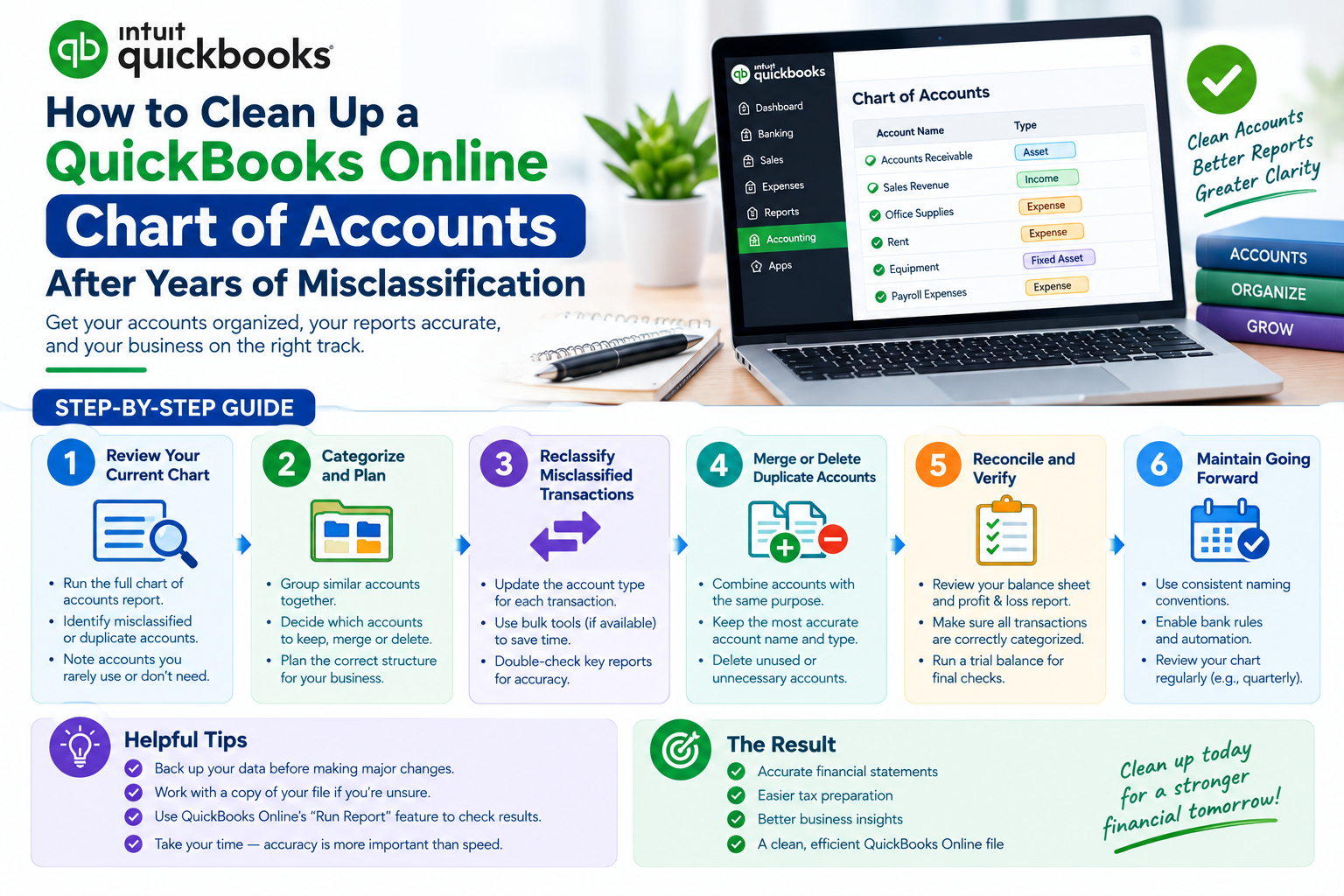
The general workflow for auditing, merging, and reclassifying a messy QuickBooks Online chart of accounts.
Years of misclassified transactions to untangle?
We’ll reclassify your historical transactions accurately, without disturbing periods you’ve already filed taxes for.
Get a Free ConsultationStep 5: Retire Unused Accounts the Right Way
QuickBooks won’t let you delete an account that has any transaction history attached to it, and you generally shouldn’t want to anyway, since that history needs to stay available for reporting and audits. Instead, make unused accounts inactive: open the account, select Make Inactive, and it disappears from your active chart of accounts and dropdown menus while its historical data stays fully intact and reportable.
Step 6: Standardize Going Forward
Any effort to clean up a QuickBooks Online chart of accounts that isn’t backed by ongoing standards drifts back into the same mess within a year or two. Before you consider the project finished, put these in place:
- A consistent naming convention. Decide on capitalization, abbreviations, and naming patterns, and apply them across every account.
- A limit on sub-accounts. Only create a sub-account when you genuinely need the added detail in reporting, not by default.
- A single person responsible for chart of accounts changes. If anyone on the team can create a new account on the fly, duplicates creep back in quickly.
- A written quick-reference guide. A one-page document showing which account to use for common expense types keeps categorization consistent across whoever is entering transactions.
Common Cleanup Mistakes
| Mistake | Why It’s a Problem | Fix |
|---|---|---|
| Merging accounts without checking account type first | QuickBooks blocks the merge, or worse, merges into an account with the wrong type | Correct account types before attempting any merge |
| Reclassifying transactions in already-filed tax periods without review | Can create a mismatch between your books and what you already reported to tax authorities | Check with your accountant before reclassifying anything in a filed period |
| Deleting accounts with transaction history | QuickBooks won’t allow it, and forcing a workaround can distort historical reports | Make unused accounts inactive instead of deleting them |
| Cleaning up without a naming standard going forward | The chart of accounts drifts back into duplicates within a year or two | Document naming conventions and assign one person to manage new accounts |
When to Bring in a Bookkeeper
A small chart of accounts with a handful of obvious duplicates is manageable to clean up yourself in an afternoon. Years of accumulated misclassification, especially across multiple tax-filed periods, carries real risk if handled without care, since a wrong move can distort historical reports or create a mismatch with what’s already been filed.
GlobalBookkeepingExperts.com handles projects to clean up a QuickBooks Online chart of accounts and reclassify historical transactions across QuickBooks Online, Xero, and Zoho Books as part of our bookkeeping cleanup and catch-up services.
Frequently Asked Questions
Can I undo a merged account in QuickBooks Online?
No. Merging accounts is permanent. Export your chart of accounts and transaction detail before merging anything, so you have a record of the original structure if you ever need it.
Who has access to the Reclassify Transactions tool?
It’s available under Accountant Tools for QuickBooks Online Accountant users, and it’s built into QuickBooks Online Advanced directly. Other plan tiers don’t include it natively.
Why can’t I delete an old, unused account?
QuickBooks Online doesn’t allow deleting accounts that have transaction history attached. Make the account inactive instead, which removes it from active use while keeping its historical data intact.
Is it safe to reclassify transactions from a prior tax year?
Check with your accountant first. Reclassifying transactions in a period you’ve already filed taxes for can create a mismatch between your books and what was reported, depending on how material the change is.
How do I stop my chart of accounts from getting messy again?
Set a consistent naming convention, limit unnecessary sub-accounts, assign one person to manage new account creation, and keep a written reference guide for common categorization decisions.
Conclusion
Learning to clean up a QuickBooks Online chart of accounts comes down to following a specific order: audit first, fix account types, merge true duplicates, reclassify misplaced historical transactions, and retire what’s no longer needed. Skip the order, and you risk creating new problems while trying to fix old ones. Follow it, and you end up with books that actually reflect your business.
Let us clean up your chart of accounts correctly
From full audit through historical reclassification, GlobalBookkeepingExperts.com untangles years of misclassification without disturbing what’s already been filed.
Talk to a Bookkeeping Specialist