How to Fix Inventory Discrepancies in QuickBooks Online and Xero
A physical stock count that doesn’t match what your accounting software shows is one of the most common reasons businesses call a bookkeeper. Learning how to fix inventory discrepancies in QuickBooks Online and Xero starts with understanding that the two platforms handle inventory quite differently under the hood, which changes both how discrepancies show up and how you correct them.
This guide covers why inventory discrepancies happen, how each platform’s valuation method affects what you’re seeing, and the correct steps to fix a mismatch in each system.
Why Inventory Discrepancies Happen
Before you can fix inventory discrepancies in QuickBooks Online and Xero, it helps to know where they usually come from. Most trace back to a timing gap between what physically happened in your warehouse and when that event got recorded in your accounting software. Common causes include:
- Purchase orders that never became bills. Both platforms only update inventory once a purchase order converts into an actual bill, not when the order is placed or even received.
- Overselling. Selling more units than you actually have creates a mismatch between your system count and reality.
- Miscounted physical stock. Human error during a manual count is one of the most common and hardest-to-trace causes.
- Supplier quantity mismatches. If a shipment arrives with a different quantity than the purchase order specified, and nobody adjusts the bill to match, the discrepancy compounds from that point forward.
- Shrinkage. Damage, theft, or spoilage reduces your physical count without any transaction recording the loss.
How Each Platform Values Inventory (and Why It Matters)
QuickBooks Online uses FIFO (first-in, first-out) for inventory valuation, and it allows quantities to go negative. If you oversell a product, QuickBooks lets the transaction go through and shows a negative quantity on hand rather than blocking the sale.
Xero uses a weighted average cost method instead. Every purchase blends into a running average unit cost, and every sale draws from that average. Xero also blocks you from selling more units than you have on hand, so an overselling attempt shows up as a blocked transaction rather than a negative inventory number.
This difference changes how you’ll first notice a problem. In QuickBooks, you’ll spot negative numbers on an inventory report. In Xero, you’ll more often hit a wall trying to invoice a sale the system won’t let you complete.
Not sure why your inventory numbers don’t add up?
We help clients across the US, UK, Canada, Australia, and the GCC reconcile inventory in both QuickBooks Online and Xero.
Request a Bookkeeping ConsultationFixing Discrepancies in QuickBooks Online
Step 1: Run the Inventory Valuation Detail report
Go to Reports → Inventory Valuation Detail and set the date range to All Dates. Any product with a negative quantity on hand will show clearly in the Qty column. Intuit’s own guidance on negative inventory walks through this same report as the starting point.
Step 2: Convert open purchase orders to bills
Check for purchase orders that received stock but never converted into a bill. QuickBooks doesn’t count items as inventory until that conversion happens, so unconverted purchase orders are a frequent, easy-to-miss cause of apparent shortages.
Step 3: Perform a physical count and compare
Do a full physical count of the affected items and compare the result against your system’s quantity on hand. Note the exact difference for each item before making any corrections.
Step 4: Adjust quantity on hand
Select + New → Inventory qty adjustment, choose the appropriate inventory adjustment account, and enter either a new quantity or a change in quantity for each affected item. QuickBooks automatically posts the corresponding adjustment to your Inventory Asset and Cost of Goods Sold accounts. Document the reason for each adjustment in the memo field, since a string of unexplained quantity adjustments is difficult for anyone to review later, including your accountant.
Fixing Discrepancies in Xero
Step 1: Check quantity on hand against bills and invoices
Go to Business → Products and Services and review the Quantity on Hand column for the affected items. Click into an item to see its full transaction history and confirm every bill and invoice affecting it has actually been approved, since unapproved transactions won’t update inventory levels.
Step 2: Perform a physical count
As with QuickBooks, compare a real physical count against what Xero shows before making any correction, and note the exact variance per item.
Step 3: Adjust inventory
From Business → Products and Services, select the item that needs correcting, choose Adjust Inventory, and enter the correct stock quantity. Since Xero uses weighted average cost, be aware that a correction affects the running average cost for that item going forward, not just the quantity.
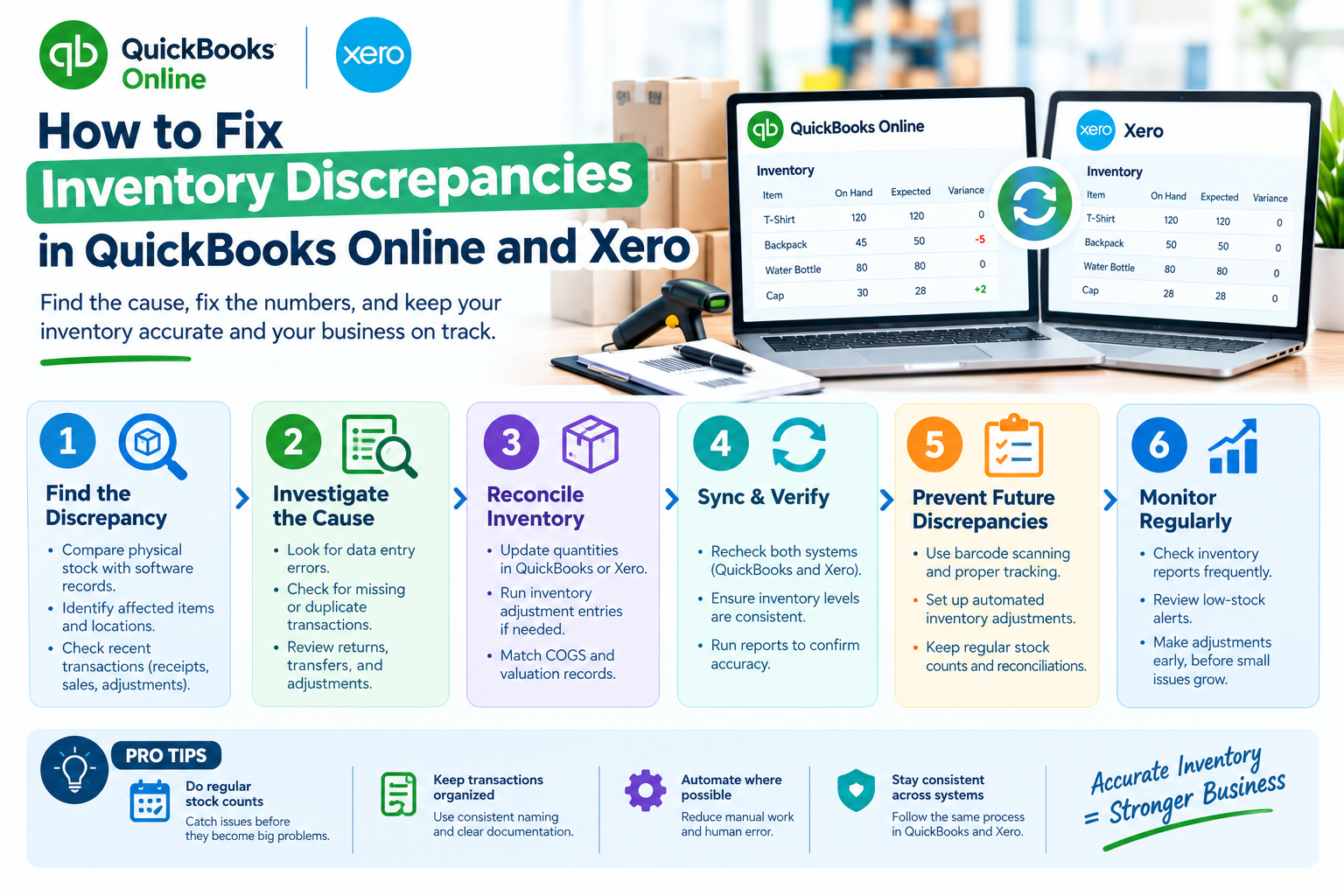
The general process for identifying and correcting inventory discrepancies in QuickBooks Online and Xero.
Dealing with negative inventory or blocked sales?
We’ll identify the root cause and correct your inventory records without creating new reporting problems.
Get a Free ConsultationKey Differences at a Glance
| Factor | QuickBooks Online | Xero |
|---|---|---|
| Valuation method | FIFO (first-in, first-out) | Weighted average cost |
| Overselling behavior | Allows negative quantity on hand | Blocks the sale before it goes negative |
| Adjustment tool | Inventory qty adjustment | Adjust Inventory (in Products and Services) |
| Multi-warehouse and assemblies | Available natively on Plus and Advanced | Not supported natively; typically needs a third-party inventory app |
Preventing Future Discrepancies
A few habits make it far less likely you’ll need to fix inventory discrepancies in QuickBooks Online and Xero every few months:
- Convert purchase orders to bills as soon as stock arrives. Delaying this step is one of the most common causes of an inaccurate count.
- Schedule regular physical counts. Catching a small discrepancy monthly is far easier than untangling a year’s worth of drift at once.
- Record shrinkage as it happens. Don’t wait for a physical count to reveal damage or theft that occurred months earlier.
- Document every adjustment. A clear memo on each correction makes future audits and reviews much faster.
When to Bring in a Bookkeeper
A single miscounted item is a quick fix in either platform. Inventory discrepancies spread across many SKUs, or ones that have compounded over several months of unconverted purchase orders, take more care to unwind without distorting your cost of goods sold and gross margin reporting along the way.
GlobalBookkeepingExperts.com helps businesses fix inventory discrepancies in QuickBooks Online and Xero, and handles ongoing inventory reconciliation across both platforms as well as Zoho Books.
Frequently Asked Questions
Why does QuickBooks Online let my inventory go negative?
QuickBooks Online allows transactions to post even if they oversell a product, showing a negative quantity on hand rather than blocking the sale. Xero handles this differently by blocking the sale before it can go negative.
What’s the difference between FIFO and weighted average cost?
FIFO, used by QuickBooks Online, assumes you sell your oldest inventory first and values cost of goods sold accordingly. Weighted average cost, used by Xero, blends every purchase into a single running average cost per unit.
Why doesn’t my quantity on hand match my physical count?
The most common causes are unconverted purchase orders, overselling, miscounted stock, or shrinkage that was never recorded as it happened. Check each of these before making any adjustment.
Does adjusting inventory affect my cost of goods sold?
Yes, in both platforms. Quantity adjustments post directly to your Inventory Asset and Cost of Goods Sold accounts, so an inaccurate adjustment can distort your profit and loss statement.
Can I switch valuation methods if I move between platforms?
Moving inventory data between a FIFO system and a weighted average system can shift your reported cost of goods sold and inventory value. Plan any migration carefully and involve your accountant.
Conclusion
Learning to fix inventory discrepancies in QuickBooks Online and Xero for good comes down to understanding which platform you’re working in, since FIFO and weighted average cost behave differently, and QuickBooks allows negative inventory while Xero blocks it. Confirm the root cause with a real physical count before adjusting anything, and document every correction so the next person reviewing your books can follow what happened.
Let us reconcile your inventory correctly
From root-cause investigation through ongoing inventory reconciliation, GlobalBookkeepingExperts.com keeps your stock records accurate in QuickBooks Online and Xero.
Talk to a Bookkeeping Specialist